A lot of small businesses in India do all their billing on a phone. No counter computer, no printer, just the Vyapar app and WhatsApp. It works surprisingly well once you know the flow.
Here are the steps Vyapar itself teaches for mobile billing, with what we have learned from using it at a busy shop.
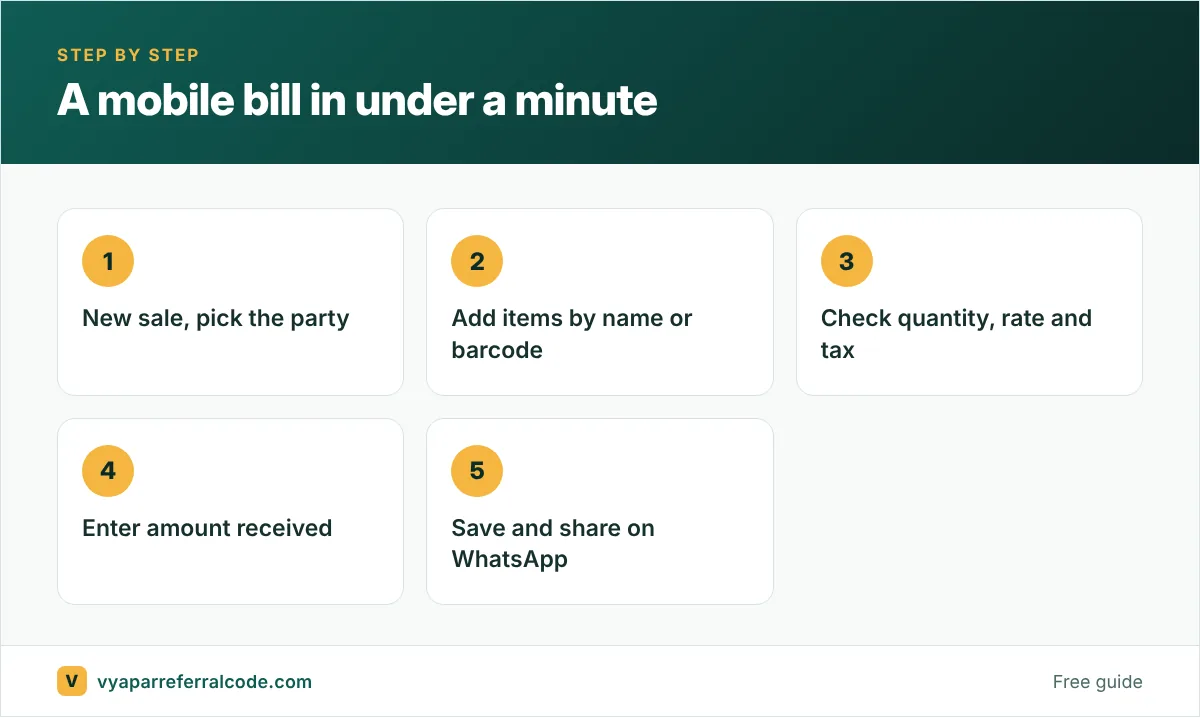
Step 1: open a new invoice
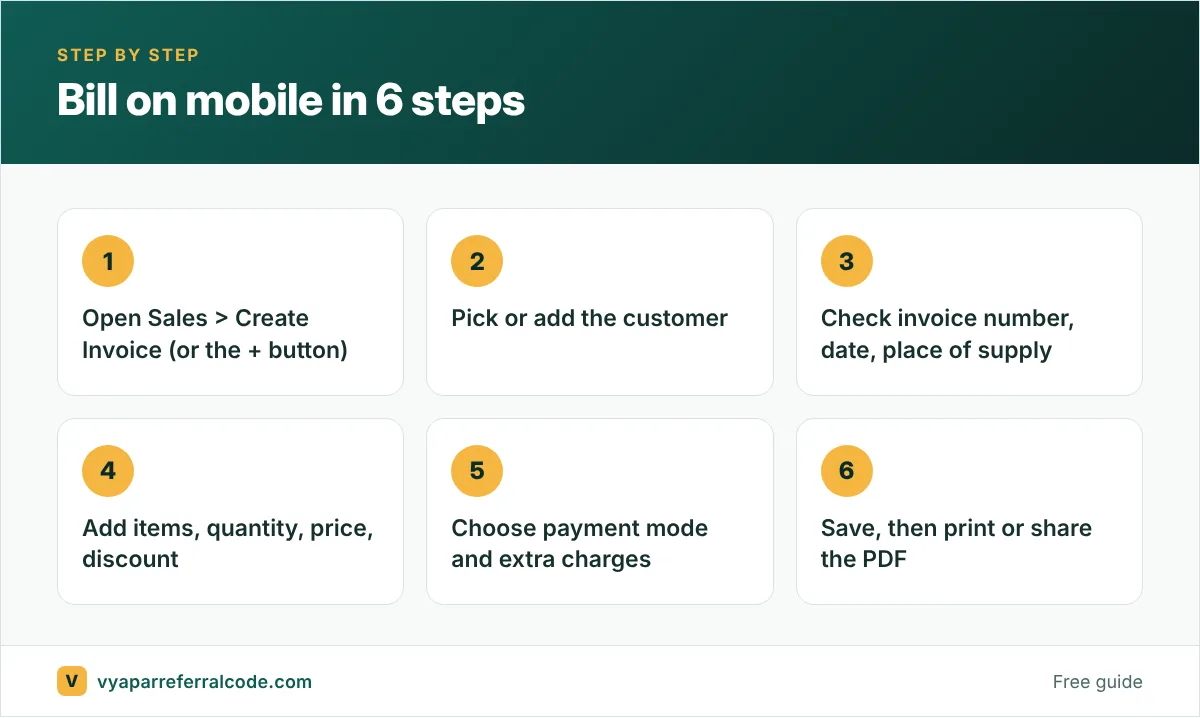
Open the app and go to Sales, then Create Invoice. There is also a + shortcut on the home screen that starts a new invoice straight away. That shortcut is the one you will use a hundred times a day.
Step 2: add the customer
Start typing the customer’s name and pick them from the list. If they are new, type the name anyway and Vyapar lets you create them on the spot, with phone number and address.
For a walk-in customer you do not need to save, many shops keep one party called “Cash Customer”. It keeps the party list clean.
Step 3: check the invoice details
The invoice number, date and place of supply fill in automatically. You can edit them, but usually you should not touch the invoice number. GST rules want invoice numbers in one running series per financial year. Our guide to GST invoice format explains why.
Place of supply is the one to watch. If the customer is in another state, the place of supply should be their state, so Vyapar charges IGST instead of CGST + SGST. Our CGST, SGST and IGST explainer has examples.
Step 4: add the items
Pick each product, then enter quantity, price and any discount. One invoice can have as many items as you like. If an item has the right GST rate saved, the tax fills in by itself.
Typing on a small screen is where mistakes happen, so two tips:
- Save your items properly once (price, tax, unit) so you only type the quantity while billing.
- If you sell packaged goods, a Bluetooth barcode scanner paired with your phone saves a lot of typing.
Step 5: payment and extra details
Choose how the customer paid: cash, bank or UPI. If they paid part now and part later, enter what they paid. The rest shows as their balance.
You can also add shipping or packing charges, round off the total, attach a photo or document, and add a note. The round-off option is handy when a customer pays ₹2,500 against a bill of ₹2,498.40.
Step 6: save, share and print
Tap save and the invoice is ready. You can print it on a Bluetooth printer, download it as a PDF, or share it. Most of our customers prefer WhatsApp: it arrives instantly, they can find it later, and you have a record that you sent it.

A thermal printer on the go
If customers want a paper bill, a small Bluetooth thermal printer is the usual answer. Vyapar’s print settings support 2-inch (58 mm) and 3-inch (80 mm) rolls. Pair the printer with your phone, choose thermal printing in Vyapar’s print settings, and run a test print. More in our printer setup guide.
Checking your sales later
Every bill you save feeds the reports. In Reports, the sales report shows sales by day, week, month or year, with charts. At the end of the day, a 30-second look at the day’s total tells you whether the cash in the drawer matches.
Mobile billing mistakes we see often
- Saving every walk-in as a new party. After a month the party list has 400 names, most of them “Customer”. Use one cash party.
- Editing the invoice number. It breaks your series. Leave it alone.
- Forgetting to record partial payment. Then the reminder goes out for the full amount and the customer is annoyed.
- No backup. A lost phone takes the data with it unless backup or sync is on. See backup and restore.
When the phone is not enough
If you bill more than 50 times a day, or several people bill at once, a computer at the counter is faster. With a Desktop + Mobile plan, the counter bills on the computer while you check everything on your phone. Mobile vs desktop goes into this.
A real counter scenario
Here is how mobile billing looks at a small hardware shop on a busy morning. A contractor walks in for 12 items. The owner opens a new sale, picks the contractor’s party (so the bill goes to his credit account), and adds items by typing the first few letters of each name. Two items have barcodes, so he scans them with the phone camera. The total comes to ₹8,460. The contractor pays ₹5,000 by UPI and the rest goes on credit. The bill is shared on WhatsApp before the contractor reaches his bike.
That evening, the owner opens the party’s statement and sees the ₹3,460 balance waiting. No notebook, no “kitna baaki hai” argument next week.
Speed tips for phone billing
- Keep item names short and searchable. “Cement ACC 50kg” is easier to find than “ACC Cement Bag 50 Kilogram Premium”.
- Set default quantities and units so you are not typing “1 pc” every time.
- Use the party’s phone number so sharing is one tap.
- Turn on cash sale as default if most of your customers are walk-ins.
- Charge the phone. It sounds obvious, but a dead phone at 7 pm is the most common reason shops go back to the notebook.
For larger counters and long bills, compare with the desktop app in our mobile vs desktop guide.
Frequently asked questions
Is the Vyapar mobile app free?
Yes, you can download it and start billing without paying. Paid plans add features such as multi-device sync and removing the Vyapar branding from invoices. See our free vs premium guide.
Can I make GST bills on the Vyapar mobile app?
Yes. Turn on GST in settings, add your GSTIN and save GST rates on your items. The app then calculates the tax on each bill.
Can I share a Vyapar bill on WhatsApp?
Yes. After saving the invoice, use the share option and pick WhatsApp. The customer gets a PDF.
Does Vyapar mobile work without internet?
Vyapar can bill offline on one device and sync later. Sharing on WhatsApp needs internet.
If you are about to install Vyapar for the first time, use the referral code PNQ1G9 when you sign up to get 3 to 6 months extra. Our step-by-step guide shows where it goes.