Your invoice is the one document every customer keeps. A wholesaler files it. A business customer hands it to their accountant. A retail customer screenshots it on WhatsApp when something goes wrong. It is worth ten minutes to make it look right.
Vyapar keeps all invoice design under one tab. This guide walks through it section by section, based on Vyapar’s invoice customisation guide from October 2026.
Do this first: complete your business profile
The invoice can only show what Vyapar knows. Before touching the design, make sure your business name, address, phone, email, logo and GSTIN are filled in under your company details. Our setup guide covers this.
If you want batch, expiry or serial numbers on the invoice, turn those fields on in item settings first. More in batch and serial tracking.
Where the settings are
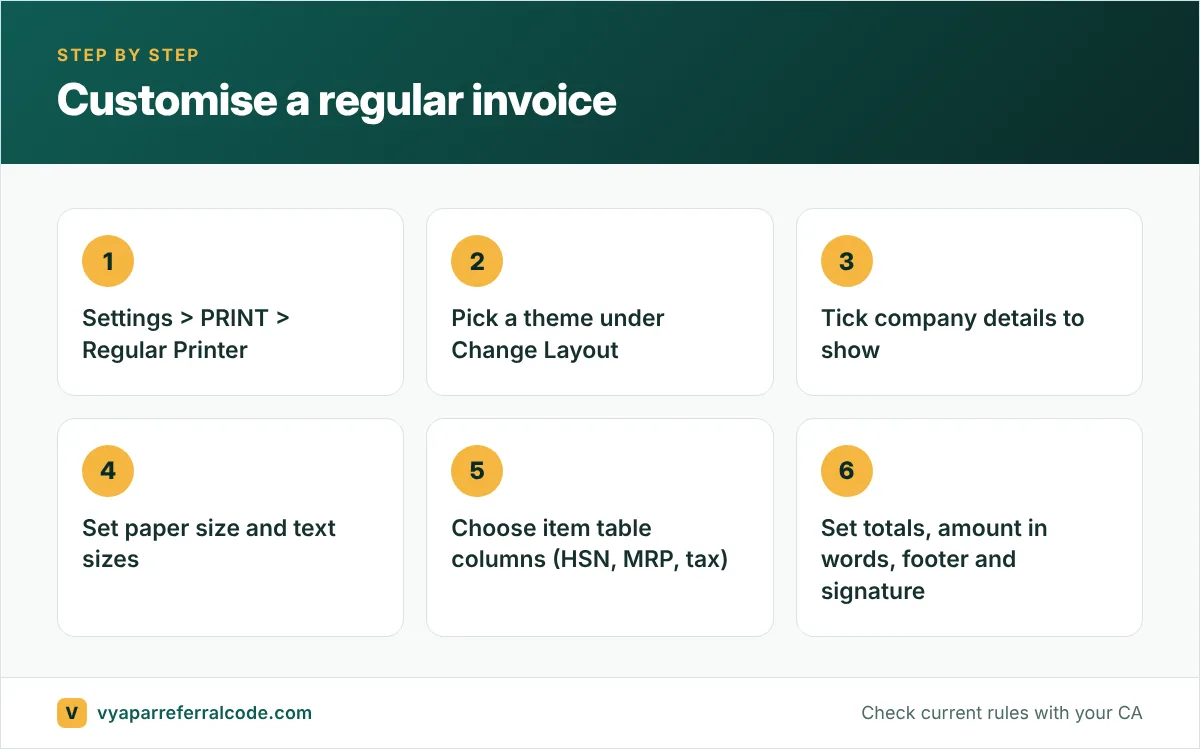
On the desktop app: Settings (gear icon) > PRINT tab. Then choose Regular Printer (A4/A5) or Thermal Printer. The two have separate themes and settings, so set up each one you use.
Regular printer (A4/A5), section by section
Change Layout. Pick a theme, for example “GST Theme 1”. A clean theme with clear lines beats a colourful one. Print a sample before deciding; some themes look better on screen than on paper.
Printer Configuration. Make it the default printer. If your bills often run to two pages, enable the repeating header so page two still shows who the bill is from.
Company Info. Tick what shows in the header: company name, logo, GSTIN, address, phone, email.
Page & Header. Paper size (A4 or A5), orientation, and text sizes for your company name and the invoice title. If you print on pre-printed letterhead, use “Extra space on Top of PDF” to leave room. “Print Original/Duplicate” adds the original and duplicate copy labels.
Change Transaction Names. Rename documents to what your customers expect, for example “Sale” to “Tax Invoice” or “Estimate” to “Quotation”.
Item Table Customization. Choose the columns: HSN/SAC, MRP, tax details and so on. You can drag column widths in the preview and set the minimum number of rows.
Totals & Taxes. Choose summary fields such as total quantity, received amount, balance amount, tax details and “You Saved”. For amount in words, choose Indian or English. For Indian-style figures like 20,00,000, choose Indian and enable “Print Amount with Grouping”.
Footer. Add a description and your terms and conditions. Enable payment mode and “Acknowledgement & Authorized Signatory” if you want a signature block.
The live preview on the right updates as you go. When it looks right, close the settings window.
Thermal printer receipts
Thermal receipts are narrow, so less is more.
- Pick a compact theme (Theme 1 to Theme 4).
- Set the paper size to your roll: 2 inch (58 mm), 3 inch (80 mm), or 4 inch (88 mm).
- Turn on bold text for readability and add a couple of extra lines at the end so the receipt does not get cut.
- In company info, keep company name, logo, “GSTIN on Sale” and phone.
- In the item table, keep only what matters: serial number, item, HSN, quantity, rate, amount.
- Add terms at the bottom.
One difference to know: the Authorized Signatory block is only for regular printer layouts. On thermal receipts, type your name or a signature line into the terms instead.
What to write in terms and conditions
Keep it short and useful. Three or four lines most shops use:
- Goods once sold will be exchanged only within 7 days with bill.
- Interest at a set rate on payments overdue beyond the due date (only if you actually enforce it).
- Subject to your city’s jurisdiction.
- Bank details and UPI ID for payment.
Long legal paragraphs on a thermal roll just waste paper.
Does your invoice meet GST rules?
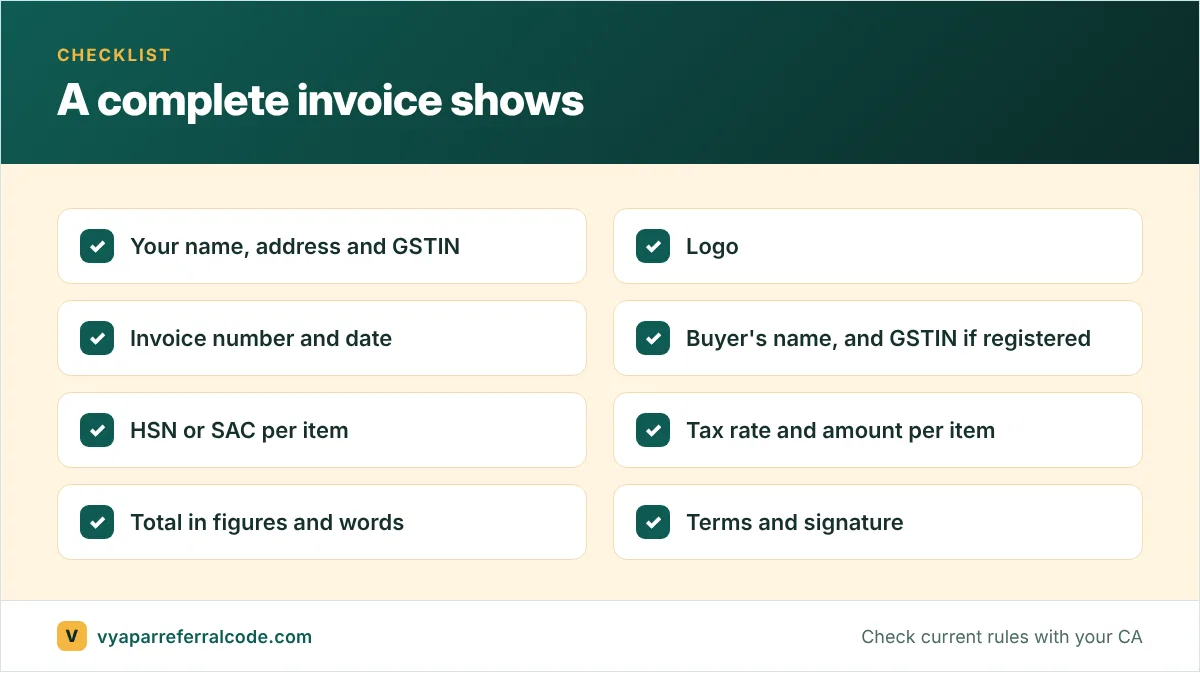
A nice-looking invoice still has to carry the fields GST law asks for: a serial number unique for the year, your GSTIN, HSN codes, taxable value, tax rate and amount, place of supply for inter-state sales, and a signature or digital signature. Our GST invoice format guide lists all of them in plain words.
Three invoices, three purposes
The right invoice layout depends on who reads it:
- For walk-in customers: a short thermal receipt with shop name, items, total and payment mode. Nobody reads terms and conditions on a kirana receipt.
- For business buyers: a full A4 tax invoice with both GSTINs, HSN codes, tax split, bank details and signature. Their accountant will check every line.
- For quotations and estimates: a clean layout with validity date and terms, because it is a sales document as much as a bill.
Vyapar lets you set these separately for regular and thermal printing, so you do not have to pick one compromise layout.
Small touches that get you paid faster
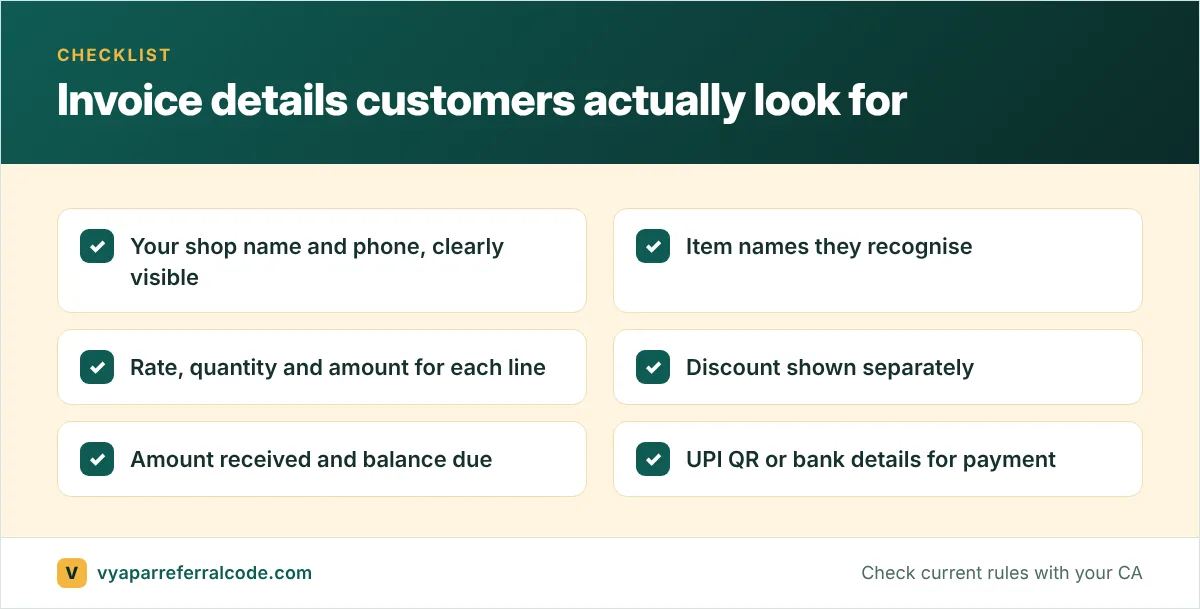
- Add a UPI QR code or bank details on the invoice. Customers pay faster when the payment method is right in front of them.
- Show the balance due on credit bills, so the customer sees the running total.
- Use a short thank-you line with your WhatsApp number for reorders. It is free marketing on every bill.
Frequently asked questions
How do I add my logo to a Vyapar invoice?
Add the logo in your company details first. Then in Settings > PRINT, tick Logo under Company Info for your printer type.
Can I change “Sale” to “Tax Invoice” on the printout?
Yes. Use Change Transaction Names in the PRINT settings.
How do I show HSN codes on the invoice?
Turn on HSN/SAC in Taxes & GST settings, add codes to your items, then pick the HSN/SAC column in Item Table Customization.
Can thermal receipts have a signature?
The signatory block is only for regular layouts. On thermal receipts, add a signature line in the terms.
New to Vyapar? Use the referral code PNQ1G9 at sign-up for 3 to 6 months extra. Our guide shows where to enter it.