A customer waiting while you fight with a printer is a special kind of stress. The good news: printer setup in Vyapar is a one-time job, and most problems come from just two settings, paper size and printer type.
This guide follows Vyapar’s printer guide from October 2026, plus a few things we learned the hard way.
Regular or thermal?
| Regular (A4/A5) | Thermal (2 or 3 inch) | |
|---|---|---|
| Best for | B2B invoices, wholesale | Retail counter receipts |
| Paper | A4 or A5 sheets | 58 mm or 80 mm rolls |
| Ink | Ink or toner | None, heat-sensitive paper |
| Speed | Slower | Very fast |
| Signature line | Available | Type it in terms instead |
Many shops end up with both: thermal at the counter for walk-in customers, A4 for wholesale bills that go with the goods.
Before you start
- Switch the printer on and connect it by USB, or pair it by Bluetooth.
- On a computer, install the printer driver from the maker’s website. Windows sometimes finds one, but the maker’s driver avoids odd spacing.
- Load the right paper: A4/A5 for regular printers, 2-inch (58 mm) or 3-inch (80 mm) rolls for thermal.
Setup steps (desktop)
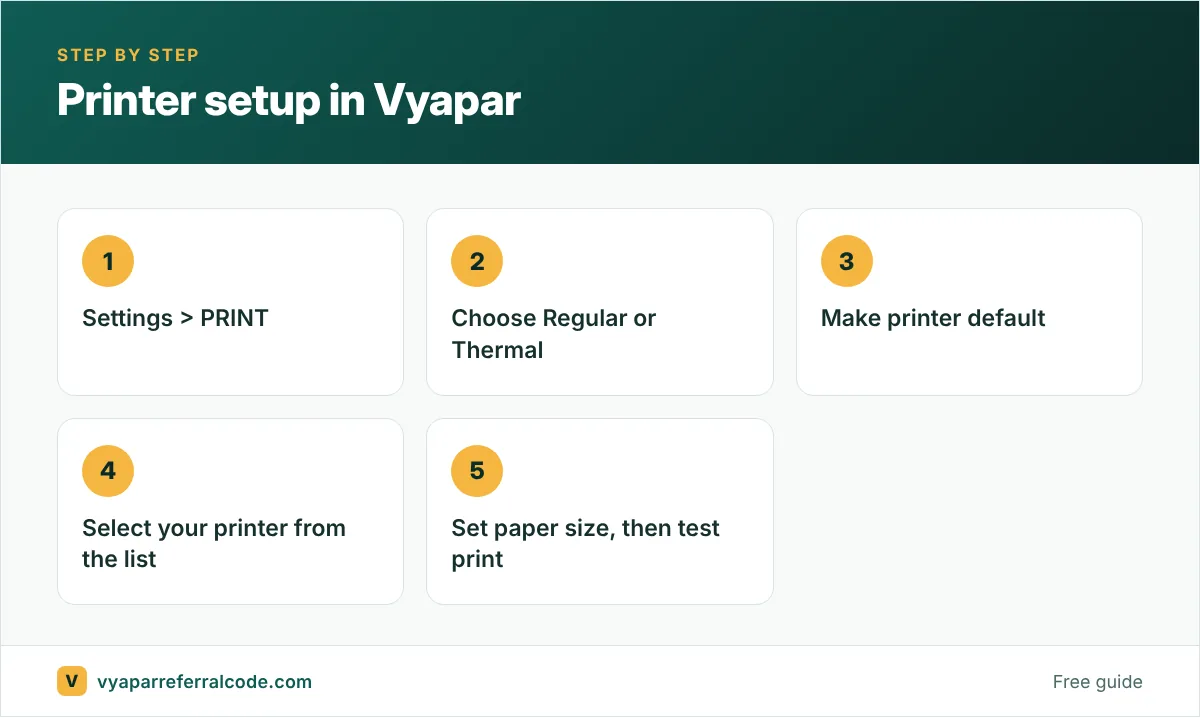
- Open Vyapar.
- Click the Settings gear in the left menu.
- Click the PRINT tab.
- Choose Regular for A4/A5 printers, or Thermal for receipt printers.
- Enable Make Printer Default, so bills go to this printer every time.
- Pick your printer from the device dropdown.
- Choose the paper size: A4, A5, 2-inch (58 mm) or 3-inch (80 mm). Then close.
- Open any old invoice and print a test copy.
Bluetooth printer on a computer: pair it in Windows Bluetooth settings first. Only then does it appear in Vyapar’s printer list.
Thermal settings worth knowing
Vyapar’s thermal options are more than paper size. From its invoice guide:
- Use Text Styling (Bold) makes small receipts easier to read.
- Extra lines at the end stops the last line from being cut when you tear the receipt.
- Auto Cut Paper After Printing and Open Cash Drawer After Printing, if your hardware supports them.
- Compact themes (Theme 1 to Theme 4) designed for narrow paper.
Vyapar also sells its own thermal printers and lists 2-inch and 3-inch models with a “Quick Setup” driver.
Fixing common problems
Text cut off on the right. The paper size in Vyapar does not match the roll. A 2-inch roll with a 3-inch setting always cuts off. Match them, and if it is still tight, set text size to Small.
Blank receipts. Thermal paper only prints on one side. Flip the roll.
Printer not in the list. The driver is not installed, or the Bluetooth printer is not paired with Windows yet.
Prints but very slow. On A4, try a simpler theme. Heavy logos slow some printers down.
Labels not fitting on A4. For barcodes, use the A4 option in the barcode generator. See our barcode guide.
Printing many invoices at once
At month end, wholesalers often need paper copies of every bill for a customer. Vyapar can print invoices in bulk: filter by party or date, select all and print in one go. Our bulk printing guide has the steps.
Make the printout look right
Once the printer works, spend five minutes on how the invoice looks: logo, GSTIN, HSN column, terms and signature. That is all under the same PRINT tab. Our invoice customisation guide walks through every section.
Which printer for which shop
| Shop type | Common choice | Why |
|---|---|---|
| Kirana, cafe, small retail | 3-inch thermal | Fast, no ink, small receipts |
| Wholesale, B2B, distributors | A4 laser or inkjet | Full GST invoice with all details |
| Field sales, delivery | 2 or 3-inch Bluetooth thermal | Prints from the phone |
| Mixed counter and office | Thermal at counter, A4 in office | Each job on the right printer |
A 3-inch thermal printer is the most common choice for counters because receipts come out in seconds and there is no ink to buy. The trade-off is that thermal paper fades over time, so for bills a customer may need for warranty or accounts, an A4 copy or a PDF on WhatsApp is safer.
A two-minute test after setup
Once the printer is set up, print three bills: a short one (2 items), a long one (20 items) and one with a long customer address. Check that nothing is cut off, the logo is clear, and the totals line up. Most printing complaints come from paper width or margin settings, and a test like this finds them before a customer does. If the layout itself needs work, see invoice customisation.
Frequently asked questions
Which thermal printer sizes does Vyapar support?
Vyapar’s printer guide lists 2-inch (58 mm) and 3-inch (80 mm) roll sizes. Its invoice guide also mentions a 4-inch option for thermal layouts.
Why is my Vyapar thermal bill cut off?
The paper size in Vyapar’s print settings does not match your roll. Set it to the same size as the paper, and use a smaller text size if needed.
Can I use a Bluetooth printer with Vyapar on a laptop?
Yes. Pair it in Windows settings first, then pick it from Vyapar’s printer list.
How do I make Vyapar print to the same printer every time?
Enable “Make Printer Default” in Settings > PRINT.
Setting up a new shop on Vyapar? Use the referral code PNQ1G9 at sign-up for 3 to 6 months extra, and follow our first 30 minutes guide.