A medical store cannot run like a regular shop. The same medicine sits in your shelves in three batches with three expiry dates. Some medicines need a prescription record. The drug inspector expects your licence number on the bill. And expired stock is money you simply throw away.
Vyapar has a set of features for exactly this. Here is how we would set up a pharmacy on it, based on Vyapar’s pharmacy pages and its batch tracking guide.
What a pharmacy needs, and where Vyapar covers it
| Need | How Vyapar handles it |
|---|---|
| Batch and expiry on each bill | Batch tracking with MRP, mfg and expiry dates |
| Drug licence on invoices | Invoice field for drug licence number |
| Schedule H and H1 | Digital register with prescription details |
| Price | MRP and PTR based billing |
| Running out of stock | Low stock alert per medicine |
| GST returns | GSTR-1 and GSTR-3B reports |
1. Batch and expiry: set it up first
This is the heart of pharmacy billing.
- Settings > ITEM, and under Additional Item Fields tick Batch No.
- Open each medicine, choose Batch Tracking, and enter each batch: MRP, batch number, manufacturing date, expiry date and quantity.
- When you bill, Vyapar asks which batch you are selling.
Our batch and expiry guide has every step. Batch tracking is a premium feature, so it needs a paid plan.
With hundreds of medicines, use the Excel import; Vyapar has a tutorial on importing items and batches through Excel. See importing from Excel.
2. Your drug licence on every invoice
Vyapar’s pharmacy page describes GST invoicing with a drug licence field, so the number prints on every bill. If you do not see a dedicated field in your version, Vyapar’s restaurant guide shows the general method for extra business fields: Settings > Transaction > additional field, name it “Drug Licence No.”, and tick “show in print”.
3. Schedule H and H1 medicines
Vyapar’s pharmacy page describes Schedule H / H1 drug tracking with a digital register, a mandatory description field on activation for prescription reference, doctor name or reason, and role-based access so only admin or authorised staff can bill them. Set this up with your pharmacist; the register is only useful if it is filled in for every sale.
4. MRP and PTR
Retail pharmacies sell at or below MRP. Distributors bill at PTR (price to retailer). Vyapar’s page mentions MRP and PTR based billing for both models. Make sure MRP is entered per batch, since it can differ between batches of the same medicine.
5. Expiry: stop losing money
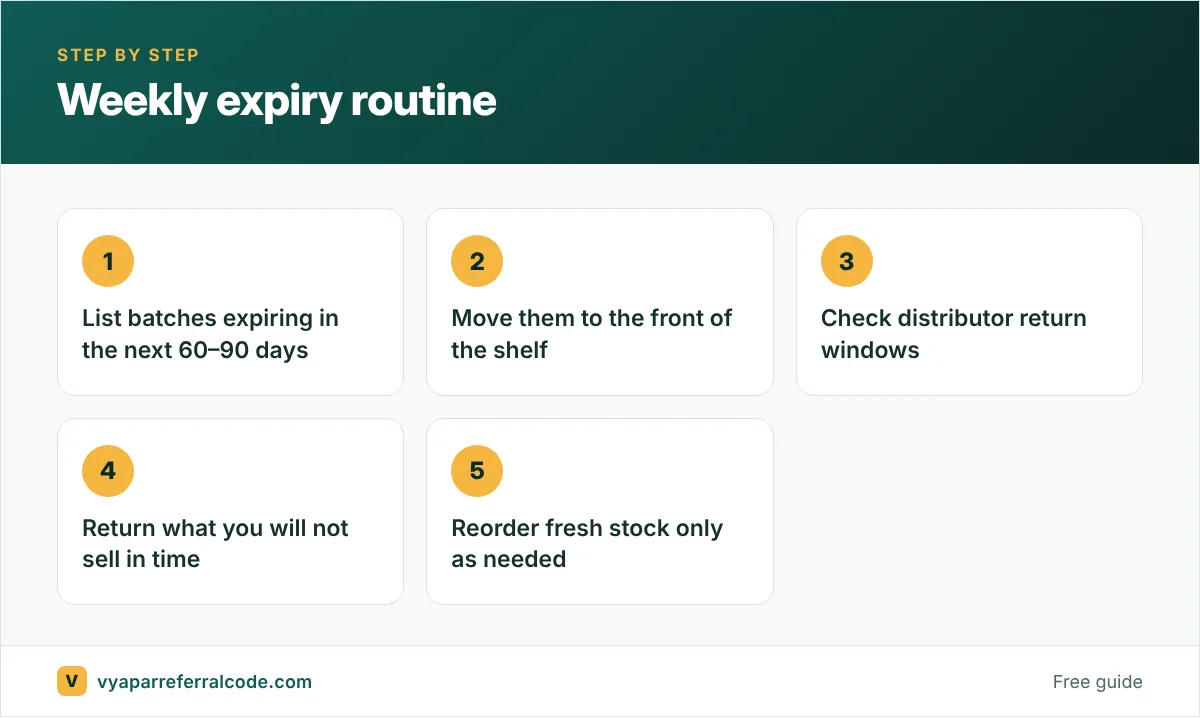
Expired medicine is pure loss, and returns to distributors usually have a window. Make this a weekly habit:
6. Low stock alerts per medicine
Set a minimum quantity for every regular medicine. Vyapar’s low stock alert tells you before a chronic patient’s monthly medicine runs out. That patient is worth more to your store than any walk-in.
7. Billing at the counter
- Most medicine packs carry barcodes; scan them into item codes once and bill by scanning. See barcodes in Vyapar.
- Use a thermal printer at the counter and turn on batch and expiry columns on the printout. See invoice customisation.
- Keep regular patients as parties, so you can see their history and send reminders for monthly refills.
GST for pharmacies
Medicines carry different GST rates, and many changed in September 2025. Some specified life-saving drugs became 0%. Check your item rates against current notifications and our new GST rates guide, and confirm with your CA for anything unclear. Vyapar’s GST reports (GSTR-1 and GSTR-3B) then come straight from your billing. See GST reports in Vyapar.
Pharma distributors
For wholesale, Vyapar’s page mentions bulk invoicing, party ledgers, credit limits, strip/box conversions and handling expired stock and purchase returns. Distributors moving goods above ₹50,000 will also want e-way bills.
A counter example: one prescription
A customer brings a prescription for three medicines, one of them a Schedule H drug. At the counter:
- The pharmacist adds the customer with phone number and the doctor’s name.
- Each medicine is added with its batch. The billing screen shows the batch and expiry, and the pharmacist picks the nearest-expiry batch.
- For the Schedule H medicine, the prescription is checked and the details recorded as your state’s rules require.
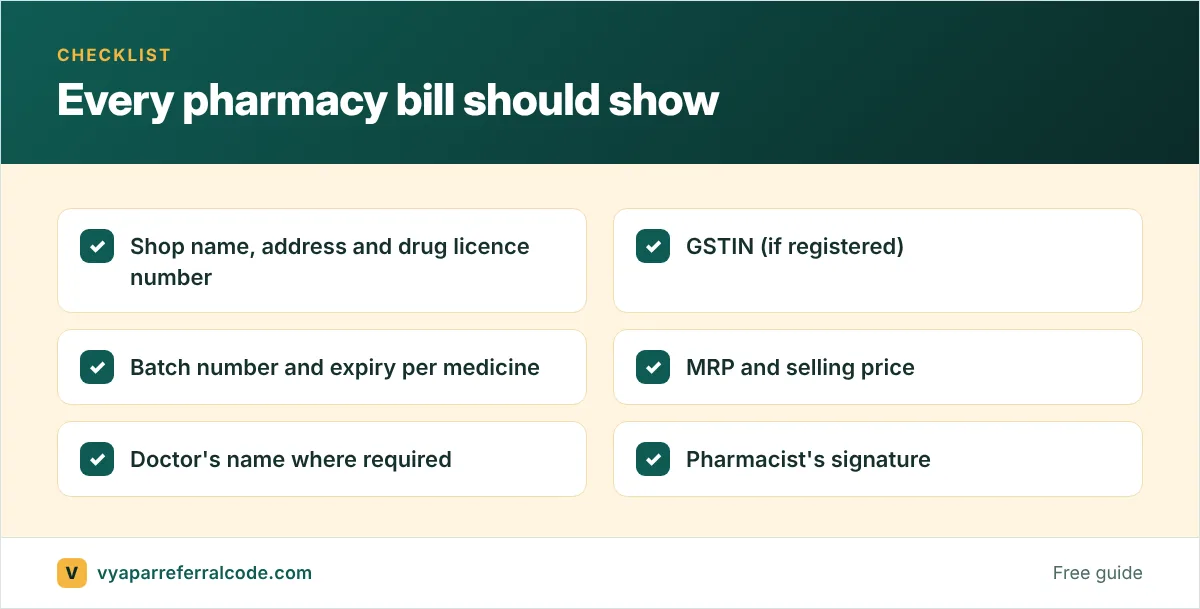
- The bill prints with the drug licence number, batch and expiry on each line.
Keep the distributor side clean too
Most pharmacy margin is decided at purchase, not at the counter. Record every purchase bill with batch, expiry and PTR (price to retailer), and match it against the distributor’s statement monthly. Short supplies, rate differences and expired returns are easier to settle within the same month.
Frequently asked questions
Is Vyapar suitable for a medical store?
Vyapar covers the key pharmacy needs: batch and expiry tracking, drug licence on invoices, Schedule H tracking, MRP billing and low stock alerts. Batch tracking needs a paid plan.
Can Vyapar show expiry dates on the bill?
Yes. With batch tracking on, turn on the batch and expiry columns in print settings.
How do I add the drug licence number to Vyapar invoices?
Vyapar’s pharmacy page describes a drug licence field on invoices. You can also add a custom additional field and set it to show in print.
Can I import medicines with batches from Excel?
Vyapar has a tutorial on importing items and batches through Excel.