Billing by searching item names works fine at 20 bills a day. At 200 a day, with a queue at the counter, it is painful. A barcode scanner turns a five-second search into a half-second beep.
The catch is that a lot of what small shops sell has no barcode: loose items, products you repack, garments from local makers, spare parts. Vyapar can make barcodes for those, print them as labels, and then bill them by scanning. This guide is based on Vyapar’s barcode guide, updated in October 2026.
What you need
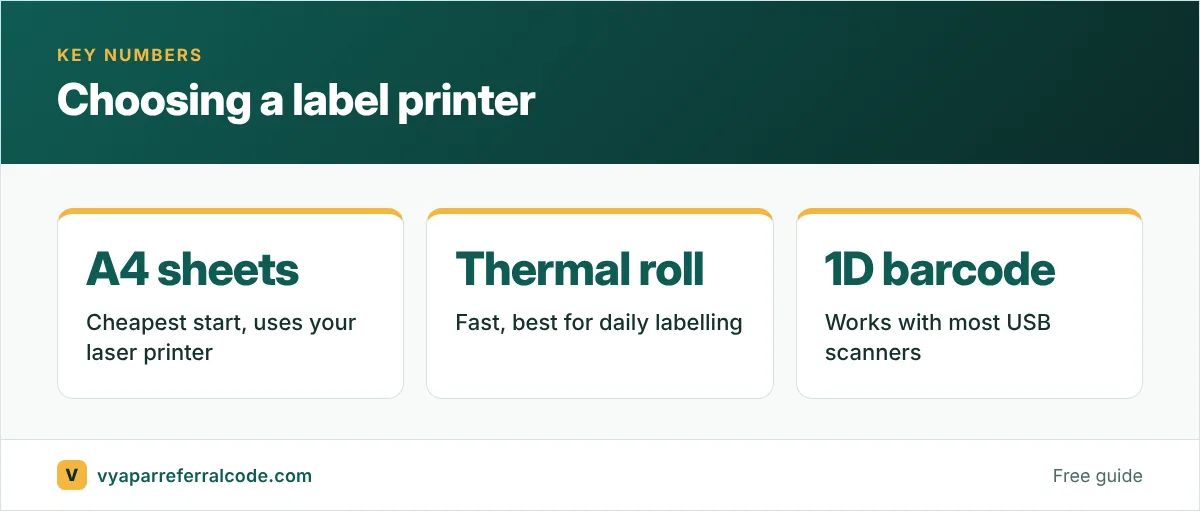
- A printer. A thermal label printer for sticker rolls, or a regular laser printer with A4 self-adhesive label sheets. Vyapar’s guide mentions 24-up and 40-up sheets as examples.
- Item codes. Every item needs a unique Item Code in Vyapar. The barcode is generated from it.
- A scanner for billing. Most standard USB scanners work with the desktop app. Vyapar generally supports standard 1D barcodes.
Products that already have a barcode
If the manufacturer has printed a barcode, do not make a new one. Scan it into the item’s Item Code field when you add the item. From then on, scanning the pack at the counter finds the item.
Making and printing labels
On the desktop app:
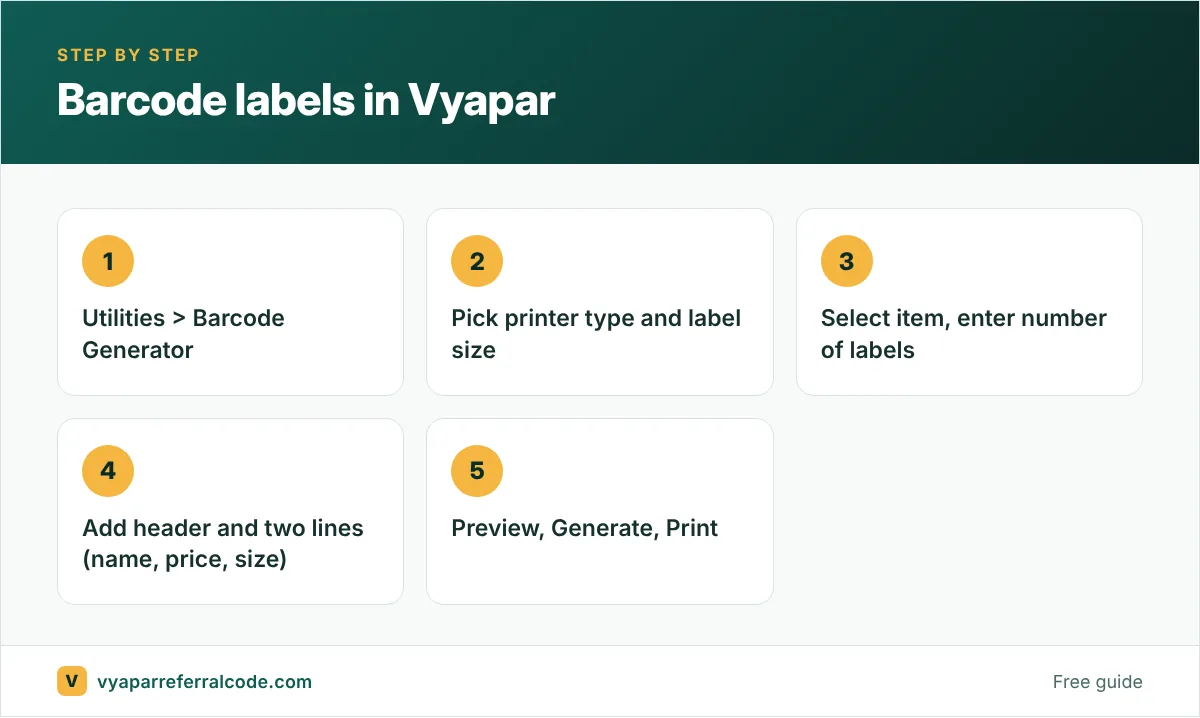
- In the left menu, scroll down and click Utilities.
- Click Barcode Generator.
- Choose your printer type and label size.
- Select the Item Name. The Item Code fills in, or you can use the code Vyapar suggests.
- Enter the No. of Labels.
- Fill Header, Line 1 and Line 2. Pick from the dropdown or type your own, for example shop name, price and size.
- To print labels for several products at once, click + Add for Barcode and repeat.
- Click Preview and check the layout.
- Click Generate.
- Click Print, or Save and Close to print later.
What to put on the label
Three short lines fit comfortably. A layout that works for most shops:
- Header: shop name
- Line 1: item name, short
- Line 2: MRP or selling price, plus size or weight
Keep it readable. A label crammed with text looks cheap, and the customer only reads the price anyway.
Printing on a regular A4 printer
No label printer? Choose the A4 option in the printer step and load self-adhesive A4 label sheets. Vyapar fits several labels on one sheet. This is the cheapest way to start; move to a thermal label printer when you are printing hundreds a week.
Billing by scanning
Once items have codes, turn on barcode scanning in Vyapar’s item settings. Then, while making a sale, scan each product and it drops into the bill. Vyapar’s electronics-store guide also describes a direct scan mode for cash sales: enable cash sale by default in transaction settings, turn on barcode scan, and you can scan straight into a new bill.
Pair this with batch and expiry tracking if you sell medicines or packaged food, and with low stock alerts so the scanner also keeps your counts right.
Tips from shops that do this well
- Label on arrival. Print and stick labels when stock comes in, not when the customer is waiting.
- One code per variant. A shirt in M and L needs two items and two codes, or the stock count will be wrong.
- Keep a test label. Stick one of each new label in a register and scan it once. A label that does not scan is worse than no label.
- Clean the scanner window. Most “scanner not working” complaints at shops are a dusty lens.
A real example: 400 items labelled in a weekend
A typical small store with around 400 items can get fully labelled in a weekend if the work is split sensibly:
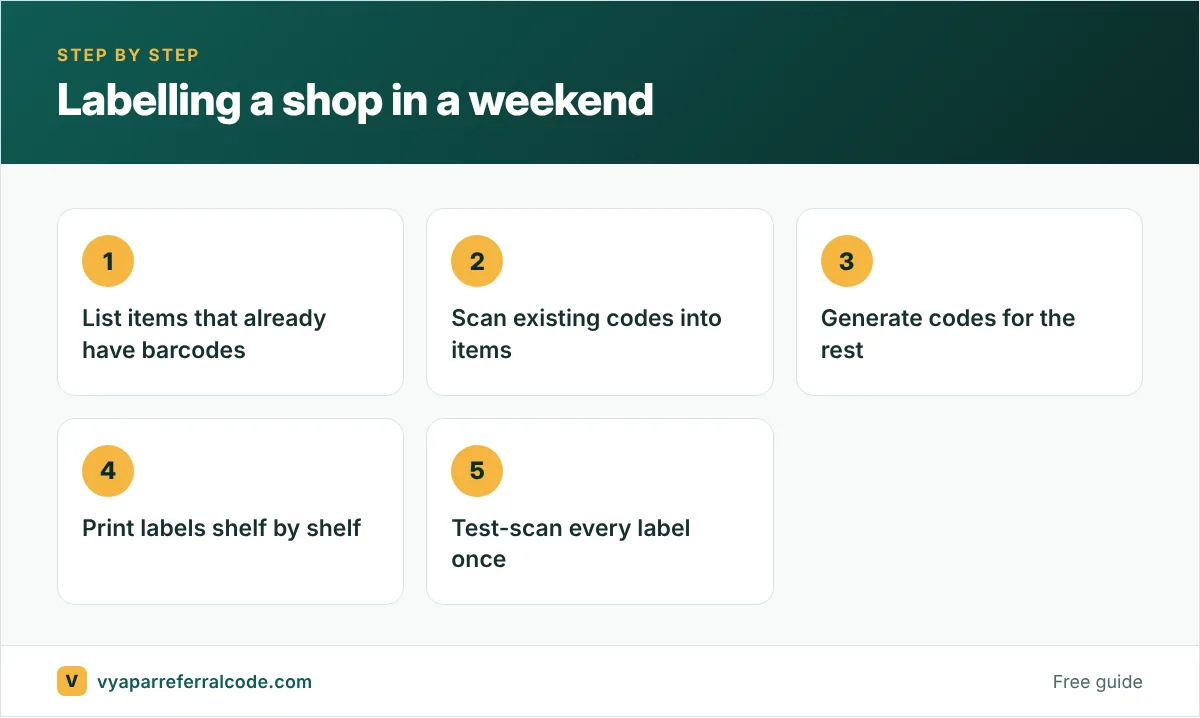
- Friday evening: check which items already carry a manufacturer barcode. Scan them into the item master instead of generating new codes.
- Saturday: for loose and unbranded items, generate codes in Vyapar and print labels in batches by shelf or category.
- Sunday: stick labels shelf by shelf, scanning each one once at the counter to confirm it opens the right item.
The confirm-scan step matters. A label stuck on the wrong product is worse than no label, because the bill goes wrong silently.
What barcode billing changes at the counter
For shops with many similar items (different sizes of the same brand, colours of the same product), the biggest gain is not speed, it is accuracy. The wrong size never ends up on the bill, so stock stays right, and the staff member’s guess does not decide the price.
Related guides
- Printer setup in Vyapar
- Vyapar for kirana and general stores
- Vyapar for clothing shops
Frequently asked questions
Where is the barcode generator in Vyapar?
On the desktop app, go to Utilities in the left menu and click Barcode Generator.
Can I print Vyapar barcodes on a normal printer?
Yes. Choose the A4 option and print on self-adhesive A4 label sheets.
Can I use the barcode already printed on a product?
Yes. Scan or type it into the item’s Item Code field and Vyapar will find the item when you scan it.
Which barcode types does Vyapar support?
Vyapar’s guide says it generally supports standard 1D barcode formats, which most laser and thermal scanners can read.
Starting fresh with Vyapar? Sign up with the referral code PNQ1G9 for 3 to 6 months extra. Our guide shows where to enter it.