Every trader knows the moment. The customer has picked everything, the bill is ready, and then: “thoda kam karo na”. You knock off a little, they smile, and you only find out at month end that the discount ate the whole margin on that sale.
Vyapar can show you the profit on a bill while you are making it. That one setting changes how you give discounts. This guide covers both kinds of discount, the default discount for regular customers, and how GST works on a discounted bill. It is based on Vyapar’s discount guide from October 2026.
Turn this on first: profit while billing
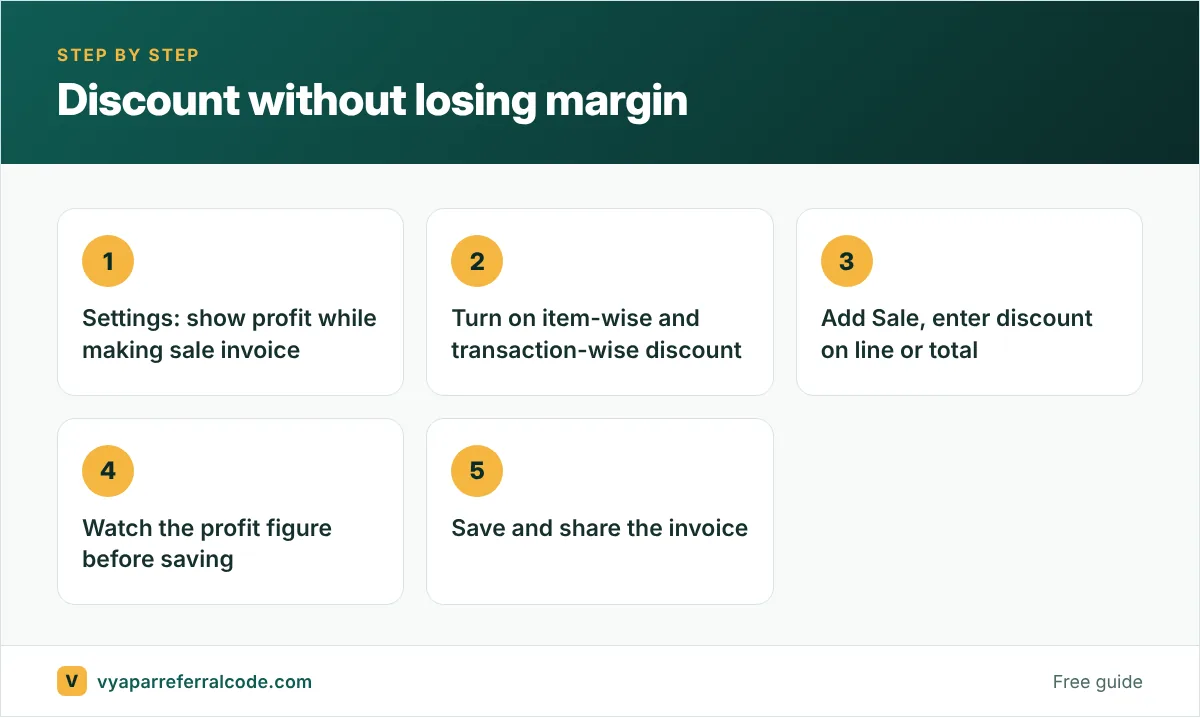
Go to Settings > Transaction Settings and enable Show Profit while making Sale Invoice.
Now when you build a sale, Vyapar shows the profit on it. Give a discount and you see the profit shrink in real time. If it goes to zero or below, you know before you hit save, not after.
Item-wise or bill-wise?
Vyapar supports both, and you can use both on the same invoice.
| Item-wise discount | Bill-wise discount | |
|---|---|---|
| Applies to | One product line | The whole invoice |
| Good for | Clearance stock, scheme items | Round-off, “thoda kam karo” |
| Setting | Item Settings > Item-wise Discount | Transaction Settings > Transaction-wise Discount |
| Enter as | % or amount per line | % or amount on total |
Item-wise makes sense when the discount belongs to a product: an old model you want to clear, a company scheme, a damaged box. The discount shows on that line, so the customer sees exactly what got cheaper.
Bill-wise makes sense for the “overall kam karo” request. One number off the total, no fiddling with each line.
One-time setup
- Open Settings (gear icon, left menu).
- Under Item Settings, enable Item-wise Discount.
- Under Transaction Settings, enable Transaction-wise Discount.
Making a discounted invoice
- Click + Add Sale on the dashboard, or go to Sale > Sale Invoices > + Add Sale.
- Pick the party and check the invoice details.
- For an item discount, enter it in the Discount column of that line, as % or amount.
- For a bill discount, use the Discount field below the item table on the right.
- Check the Profit indicator.
- Save.
Default discount for a regular customer
If a wholesaler always gets 5% off, you should not have to remember it every time. In Party Settings you can set a default discount percentage for a party, and Vyapar applies it whenever you bill them.
This also stops two staff members from giving the same customer two different discounts.
How GST works on a discounted bill
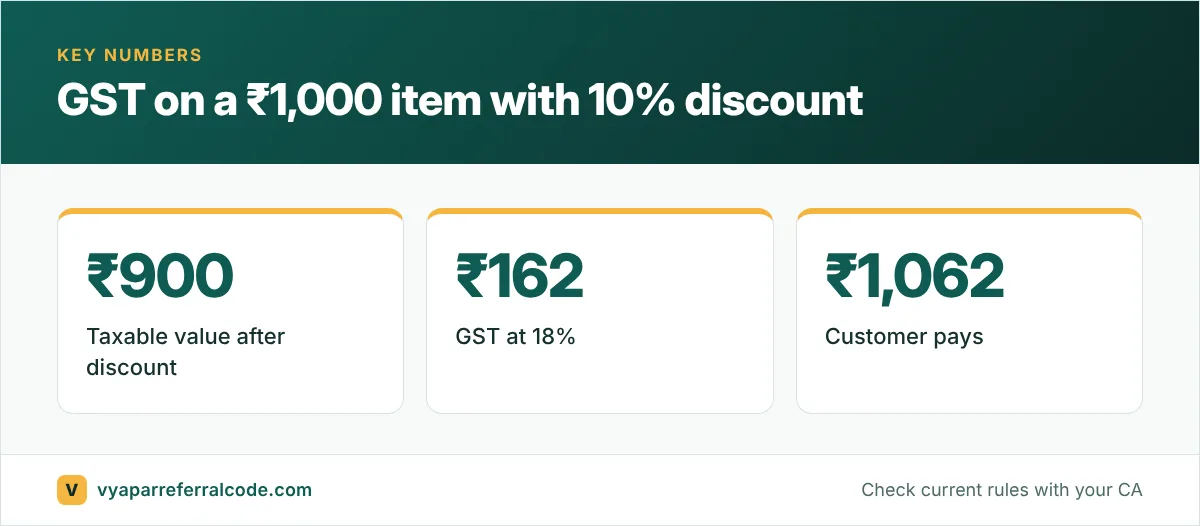
On a normal tax invoice, GST is charged on the price after the discount shown on the invoice. Vyapar recalculates the tax and total automatically.
A quick example. An item costs ₹1,000 and carries 18% GST.
- No discount: tax ₹180, total ₹1,180.
- 10% discount on the invoice: taxable value ₹900, tax ₹162, total ₹1,062.
This works for discounts given on the invoice itself. Discounts given later, like a year-end rebate, follow different GST rules and usually need a credit note. Our returns and credit note guide covers credit notes, and your CA can tell you whether a post-sale discount qualifies.
Discount habits that protect your margin
- Know your floor. For your top 20 items, know the lowest price you will go to. The profit indicator helps, but you should not need it for every sale.
- Prefer free items over cash off on slow stock, if your cost on that item is low.
- Keep discounts visible. A discount line on the invoice tells the customer they got a deal. A quietly lowered price does not.
- Check the item-wise profit report each month. In Vyapar it is under Reports, Item-wise Profit & Loss. If one item never makes money, the discount on it is too generous.
Worked example: the same discount, two ways
A customer buys goods worth ₹10,000 at 18% GST, and you agree on ₹500 off.
- Discount on the invoice (before tax): taxable value ₹9,500, GST ₹1,710, total ₹11,210. The discount reduces the tax too. This is the clean way.
- Discount given later as cash back, with no credit note: the invoice shows ₹10,000 taxable and ₹1,800 GST, total ₹11,800. You then hand back ₹500. You have paid ₹90 more GST than needed, and your books show a sale that is higher than what you actually received.
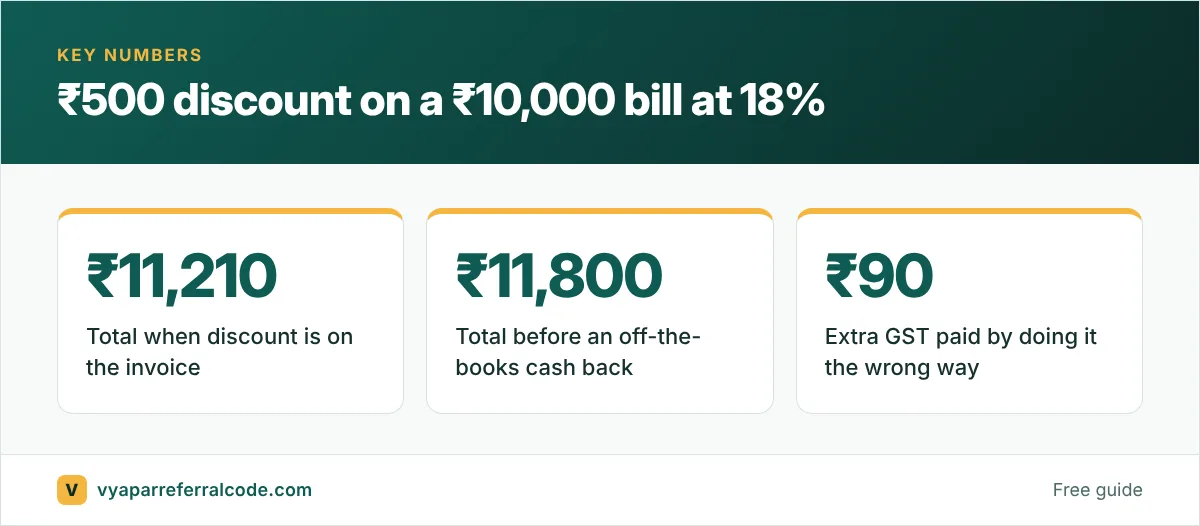
That ₹90 does not sound like much. Across a year of regular customers and festival offers, it adds up, and the mismatched books are the bigger headache.
When discounts quietly eat your profit
A 10% discount on an item with a 20% margin does not cut your profit by 10%. It cuts it by half. Before running a festival offer, look at the item-wise profit report to see which items can take a discount and which cannot. Our profit and loss guide shows where to find it.
Related guides
- Profit and loss report in Vyapar
- Customising your Vyapar invoice
- GST invoice format: what must be on it
Frequently asked questions
How do I add a discount in Vyapar?
Turn on Item-wise Discount in Item Settings and Transaction-wise Discount in Transaction Settings. Then enter the discount on an item line or on the bill total while making the sale.
Can I give both item and bill discounts on one invoice?
Yes. Vyapar allows both on the same invoice.
Is GST calculated before or after the discount?
On a tax invoice, GST is calculated on the value after the discount shown on the invoice.
How do I see profit while billing in Vyapar?
Enable “Show Profit while making Sale Invoice” in Settings > Transaction Settings.