Month end at a wholesale business usually looks like this: a customer’s accountant calls and asks for copies of every bill from last month. You open the first invoice, print, close, open the next one, print, close. Forty times.
Vyapar can print them all in one go. It is one of those features people discover a year late and then wonder how they managed without it. The steps below are from Vyapar’s own bulk printing tutorial.
The steps
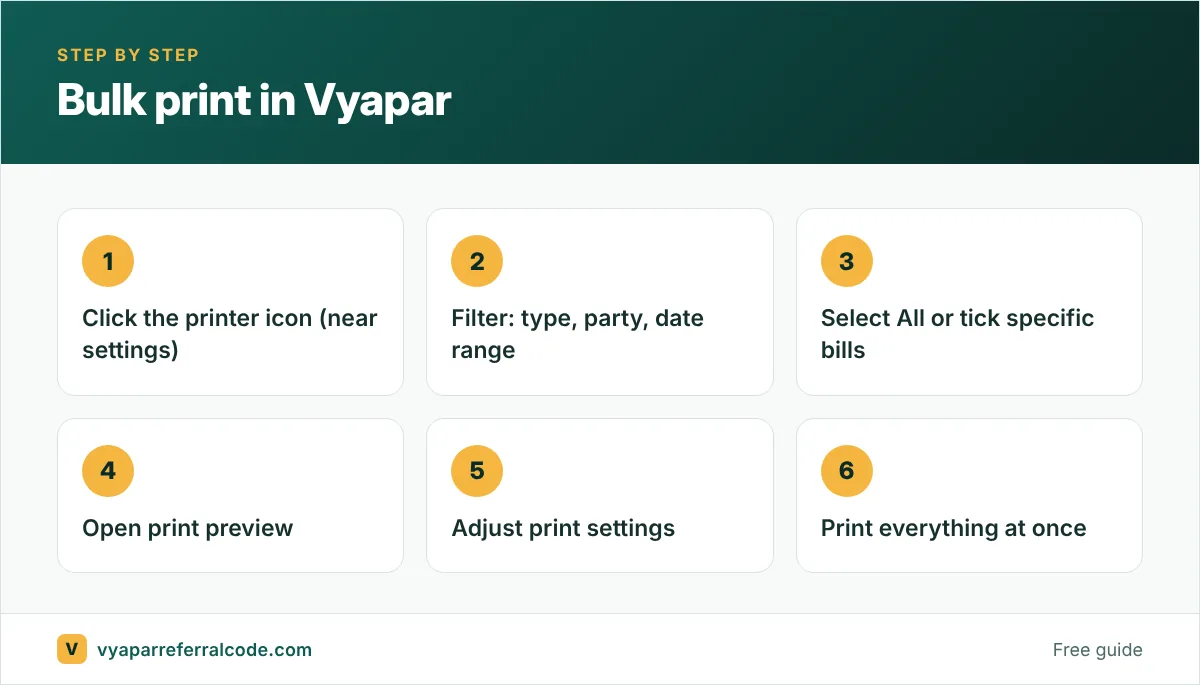
- Open Vyapar and click the printer icon on the right side, near settings.
- Use the filters to narrow the list: transaction type, party name, or a date range.
- Tick the invoices you want, or use Select All.
- Click the printer icon again to open the print preview.
- Check the format and change any print options you need.
- Click Print, choose your printer, and everything prints together.
When bulk printing is useful
- Month-end statements for B2B customers. Filter by party and last month, print, staple, hand over.
- Audit or CA visits. Print all sale invoices for a quarter in one batch.
- A delivery run. Print every invoice going out on today’s vehicle.
- Backup paper copies of a period, if you like to keep a physical file.
Getting the filters right
The filter is what makes this fast. A few combinations we use:
- Party = the customer, date = last month, type = sale. Their full month in one print.
- Date = today, type = sale. Today’s bills for the evening file.
- Type = purchase, date = last quarter. Purchase bills your CA wants for input tax credit checks.
Before you print 60 pages
- Check one invoice first. Open one bill from the batch and make sure the layout, logo and terms are right. Fixing the template after printing 60 pages is painful. Our invoice customisation guide helps.
- Pick the right printer. Bulk printing is an A4 job. Long batches on a thermal roll are hard to file.
- Original or duplicate? If your theme prints copy labels, decide which one you are printing.
Do you even need paper?
Often not. Most customers are happy with PDF invoices on WhatsApp or email, and they are easier to search later. For an accountant, Vyapar’s reports and exports are usually more useful than a stack of paper: the GST reports export to Excel, and the Tally export sends everything straight into their software.
Keep bulk printing for when someone actually needs a physical copy.
A month-end example
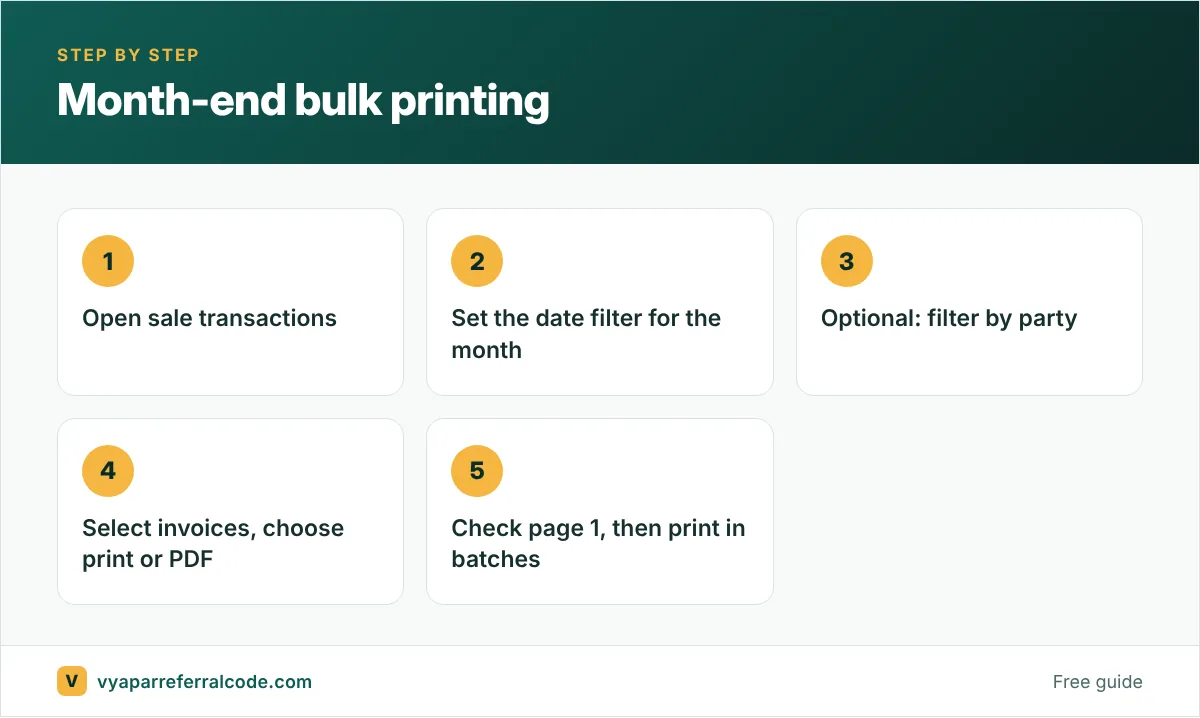
Many wholesalers and distributors print the whole month’s invoices for their records or their CA at month end. Say a distributor made 240 invoices in October. Instead of opening each one, the steps are: open the sale transactions list, filter the date range to 1 to 31 October, select all, and print in one go. For a CA who prefers digital copies, the same selection can usually be saved as PDF instead of paper.
A few practical points from shops that do this every month:
- Print in batches of 50 or so rather than 240 at once. If the printer jams on page 37, you only redo one batch.
- Filter by party when a single big customer wants copies of all their bills for reconciliation.
- Check the first page of each batch before printing the rest, in case a print setting changed since last month.
Paper or PDF?
For your own records, a PDF archive (plus regular backups) is usually enough and far easier to search later. Paper makes sense when a customer, auditor or bank specifically asks for printed copies.
Bulk printing for different businesses
- Distributors and wholesalers: a set of invoices for each delivery route, printed in the morning and handed to the driver with the goods.
- Shops with a monthly CA visit: the month’s invoices, printed or saved as PDF in one go, so the CA has everything in one file.
- Businesses with credit customers: all bills for one party over a period, attached to a statement when you ask for payment. Customers pay faster when the bills are in front of them.
- After a printer breakdown: if the printer was down for a day and bills were shared only on WhatsApp, print the whole day’s set once the printer is back for your file copy.
In each case, the filter (date range, party or both) does the real work. Get the filter right and the print is one click.
Related guides
- Printer setup for Vyapar
- Delivery challans in Vyapar
- Vyapar for kirana and general stores
Frequently asked questions
Can Vyapar print multiple invoices at once?
Yes. Click the printer icon, filter the list, select the invoices (or Select All), preview and print.
Can I bulk print invoices for one customer only?
Yes. Filter by party name and date range before selecting.
Does bulk print work for purchase bills?
The filter includes transaction type, so you can pick other types such as purchases.