Ask a shop owner what they earned last month and most will give you the sales figure. Sales are easy to see. Expenses are not: the rent goes out by bank transfer, the electricity bill gets paid at the counter, the transporter takes cash, and the tea for the staff is never written anywhere.
Then the profit and loss report looks wonderful and the bank balance does not.
Recording expenses in Vyapar fixes that, and if you are GST registered, it can also save you money. This guide follows Vyapar’s own expense guide, updated in October 2026.
Two things to decide before you enter anything
Is it an expense or stock? If you will sell it, it is a purchase and goes into stock. If you use it to run the business, it is an expense. A box of printer ink for your office is an expense. A box of printer ink you sell to customers is stock. Mixing the two inflates your stock-in-hand with things you will never sell.
Direct or indirect? Vyapar asks for this when you create an expense category.
| Direct expense | Indirect expense | |
|---|---|---|
| Linked to | Making or buying what you sell | Running the business |
| Examples | Freight on purchases, packing, job work labour | Rent, electricity, salaries, phone, office tea |
| Affects | Gross profit | Net profit |
Getting this right is what lets the profit and loss report show you both gross margin and net profit. If everything is “indirect”, your gross margin looks better than it is.
Recording an expense, step by step
On the desktop app:
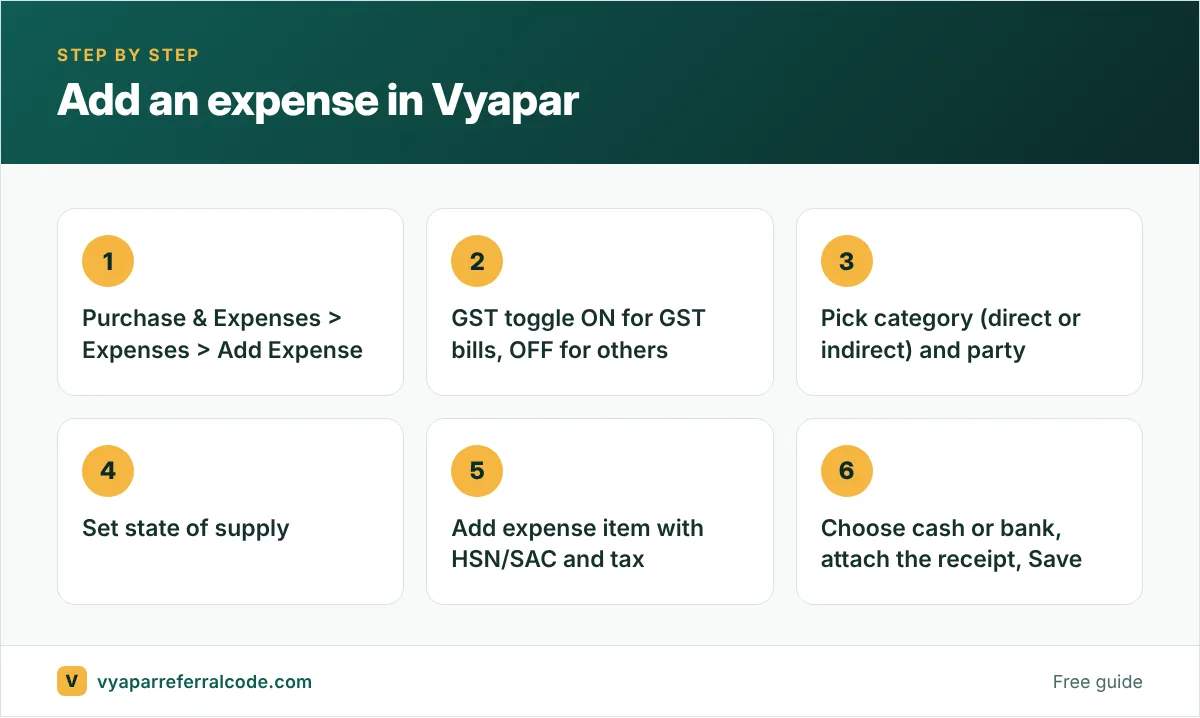
- In the left menu, click Purchase & Expenses, then Expenses.
- Click Add Expense.
- Set the GST toggle. ON if you have a GST invoice for this cost. OFF for non-GST costs such as local auto fare or staff tea.
- Choose the Expense Category. New category? The Add Expense Category window asks whether it is a Direct or Indirect expense.
- If GST is ON, select the Party (the vendor who billed you).
- Set the State of Supply. This decides whether the tax is CGST + SGST or IGST.
- In the item table, add a row and choose Add Expense Item. Enter its name, HSN/SAC code, price and tax, then save it.
- Choose the payment type: cash or bank.
- Attach the bill with Add Image or Add Document.
- Check the amounts and click Save.
The GST toggle is where the money is
If you are GST registered, the GST you pay on business expenses can usually be claimed back as input tax credit (ITC), as long as the vendor has filed their return and the conditions are met. Rent on a commercial shop, a CA’s fees, a new printer: these often come with 18% GST.
Vyapar’s guide is clear: when the GST toggle is off, the expense is still recorded, but its tax is not counted towards your ITC. Record a ₹20,000 + GST rent bill with the toggle off and ₹3,600 of credit simply disappears from your records.
Use the vendor’s correct GSTIN and the HSN or SAC code, and the expense feeds the purchase side of your GST reports. Our input tax credit guide explains the conditions in plain words.
Some expenses are blocked from ITC by law, for example most food and beverages for staff. Your CA will know which ones apply to you, so check with them before you assume every bill gives you credit.
Attach the receipt every time
It takes ten seconds with the phone camera and saves an argument later. If a vendor says they never got paid, or the tax officer asks about a large expense, the bill is right there with the entry.
Reading your expense reports
Go to Reports, scroll to Expenses, and you can view them three ways:
- by Expenses, a plain list
- by Expenses Category, which is where you spot the leaks
- by Expenses Item
Look at the category report once a month. In our experience the surprises are rarely rent or salaries. They are the small, regular things: transport, packing material, mobile recharges, “miscellaneous”. A category that has crept from ₹2,000 to ₹9,000 in six months is a conversation worth having with your staff.
A simple routine that works
- Daily: enter cash expenses before you close. They are the ones you forget.
- Weekly: enter bank and UPI expenses from your bank statement.
- Monthly: check the category report and the profit and loss.
If several people handle cash, user roles let staff record expenses without seeing your profit reports, and the audit trail shows who changed what.
Common mistakes
- Recording stock purchases as expenses. Your stock count drops, your profit drops, and neither is true.
- Using one category, “Expenses”, for everything. The report becomes useless.
- Leaving the GST toggle off on GST bills.
- Not recording owner withdrawals separately. Money you take home is not a business expense.
One month of expenses, a worked example
Here is a typical month for a small shop and how it looks once it is recorded:
| Expense | Amount | GST claimable? |
|---|---|---|
| Shop rent (landlord registered) | ₹25,000 + ₹4,500 GST | Usually yes |
| Electricity | ₹4,200 | No GST on bill |
| Staff salary | ₹18,000 | No GST |
| Transport to market | ₹2,600 | Depends on transporter |
| Tea and snacks | ₹1,500 | No, blocked credit |
Without recording these, the profit report would show ₹51,300 more profit than the shop actually made that month. With them recorded, and with the GST toggle on for the rent, the shop also gets ₹4,500 of input credit it might otherwise have missed. See input tax credit basics for why the tea and snacks do not qualify.
Frequently asked questions
Where is the expense option in Vyapar?
On the desktop app, it is under Purchase & Expenses > Expenses in the left menu. Click Add Expense to record one.
What is the difference between direct and indirect expenses in Vyapar?
Direct expenses are tied to buying or making what you sell, such as freight on purchases. Indirect expenses are the cost of running the business, such as rent and electricity. Direct ones reduce gross profit, indirect ones reduce net profit.
Can I claim GST on expenses recorded in Vyapar?
If you are GST registered, turn the GST toggle on and enter the vendor’s GSTIN and the tax. Vyapar then includes it in your purchase-side GST reports. Whether the credit is allowed depends on GST rules, so confirm with your CA.
Can I attach bills to expenses?
Yes. Use Add Image or Add Document on the expense screen.
New to Vyapar? Our setup guide walks you through the first half hour, and the referral code PNQ1G9 gives you 3 to 6 months extra at sign-up.